Customer Dashboard
Empower customers to manage their own bookings
Overview
The Customer Dashboard is a self-service portal that lets your customers view, reschedule, cancel, and download their bookings without contacting you directly. It reduces your administrative workload while giving customers full control over their appointments.
View Bookings
Upcoming and past appointments in one place
Reschedule
Pick a new date and time with live availability
Cancel
Self-service cancellation with policy enforcement
Setup Instructions
Follow these steps to set up the customer dashboard on your WordPress site. The process takes about five minutes.
Create a WordPress page
Go to Pages → Add New in your WordPress admin. Name it something like “My Bookings” or “Customer Dashboard.”
Add the dashboard shortcode
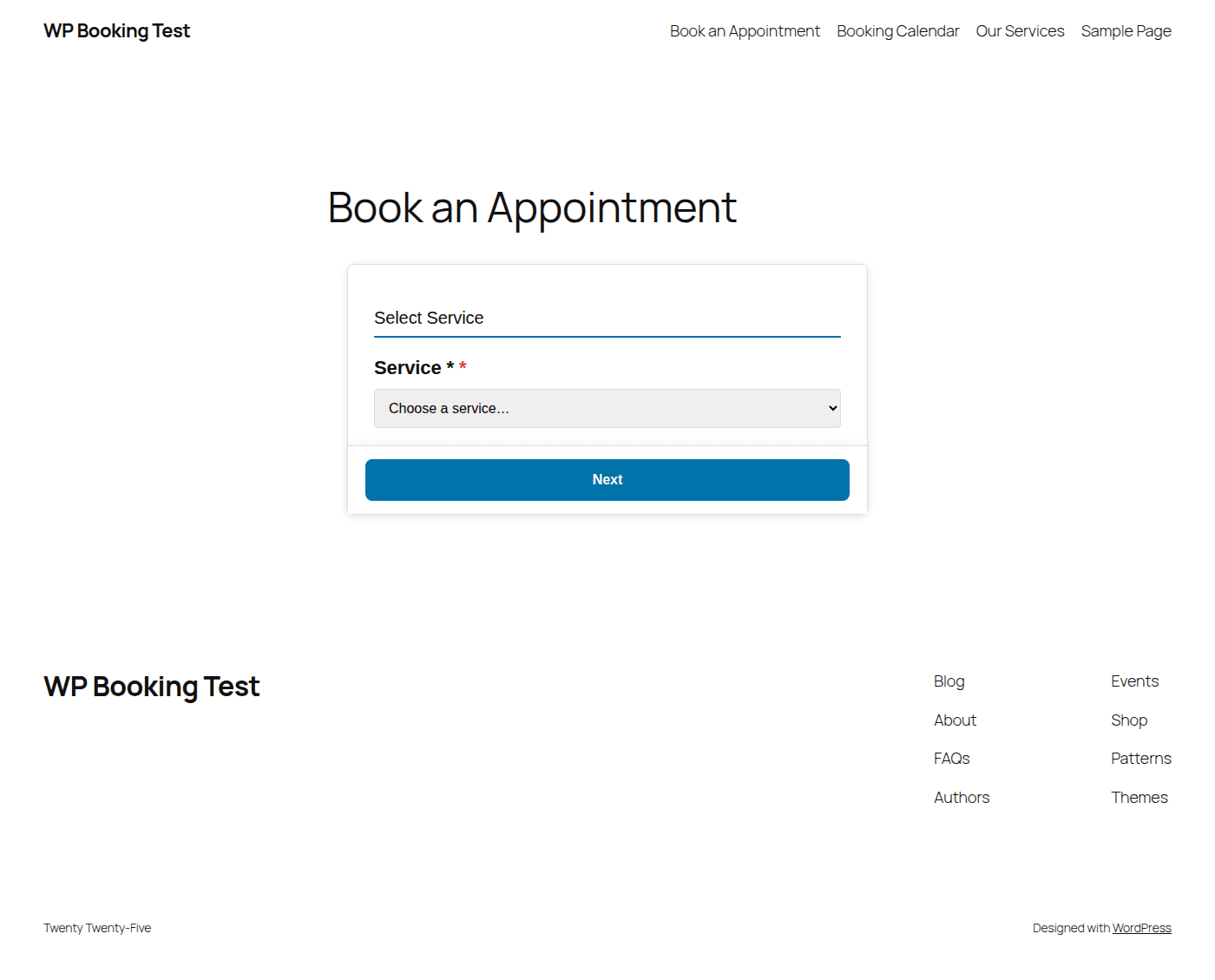
Paste the [booking_form] shortcode into the page editor. You can combine it with other shortcodes as described below.
Require user login
Go to WP Booking System → Settings → Customer Dashboard and enable “Require WordPress account.” Only logged-in users will be able to see their bookings. Guests are redirected to the WordPress login page.
Configure user role permissions
Under the same settings panel, choose which WordPress user roles can access the dashboard (e.g., Subscriber, Customer). You can also enable automatic account creation during the booking flow so new customers get a WordPress account when they first book.
Tip: Add a “My Bookings” link to your main navigation menu so customers can easily find their dashboard after logging in.
Customer-Facing Features
Once logged in, customers see a comprehensive dashboard with all of their booking information organized into clear sections.
View Upcoming Bookings
The main dashboard tab lists all future bookings sorted by date. Each entry shows:
- Booking date and time slot
- Service name and duration
- Assigned staff member
- Current status (Confirmed, Pending, Rescheduled)
- Payment status (Paid, Pending, Partially Paid)
Booking History
A separate “Past Bookings” tab displays all completed and expired bookings. Customers can review the full history of their appointments, including dates, services, staff, and final payment amounts. This is useful for record-keeping and expense tracking.
Payment Status & History
Each booking card includes a payment section that displays:
Payment Status
Visual badge showing Paid, Pending, Partially Paid, or Refunded.
Amount Paid
Total amount paid with currency, including deposits and remaining balance.
Transaction ID
Stripe or WooCommerce transaction reference for the customer’s records.
Refund History
If a cancellation triggered a refund, the amount and date are shown.
Download Calendar File (iCal / ICS)
Each upcoming booking includes an “Add to Calendar” button that downloads a standard .ics file. Customers can import this into Google Calendar, Apple Calendar, Outlook, or any other calendar application. The file contains the booking date, time, service name, staff member, and location (if configured).
Rescheduling System
WP Booking System Pro supports three types of rescheduling, all of which re-check availability in real time before confirming the new time slot.
Customer-Initiated Rescheduling
From the dashboard, customers click the “Reschedule” button on any upcoming booking. They are taken through a streamlined flow:
Click “Reschedule” on the booking card.
A calendar appears showing only available dates and times for the same service and staff member.
The customer selects a new date and time slot.
Optionally, the customer provides a reason for rescheduling.
The system verifies availability one final time and confirms the reschedule. Both the customer and the staff member receive email notifications.
Token-Based Rescheduling (No Login Required)
Every booking confirmation email includes a unique reschedule URL with a secure token. Customers can click this link to reschedule without logging in. The token is valid for the lifetime of the booking and grants access only to that specific appointment.
https://yoursite.com/booking/reschedule/?token=abc123def456Staff-Initiated Rescheduling
Staff members can reschedule bookings from their staff panel. The customer receives an email notification with the new date and time, plus a link to accept or contact support.
Admin Rescheduling
Administrators can reschedule any booking from the backend via Bookings → All Bookings. Admin rescheduling bypasses cancellation policy restrictions and can override staff availability if needed.
Cancellation System
Give customers the ability to cancel bookings on their own, while protecting your business with configurable cancellation policies.
Customer Cancellation Flow
When a customer clicks “Cancel Booking” on the dashboard, they are asked to provide a cancellation reason (optional or required, depending on your settings). After confirming, the booking status changes to “Cancelled” and the time slot is released back into availability.
Cancellation reasons are tracked for reporting:
- • Schedule conflict
- • Found another provider
- • No longer needed
- • Custom reason (free text)
Cancellation Policies
Configure how far in advance customers must cancel to avoid fees. Go to WP Booking System → Settings → Cancellation Policy to set these rules:
| Setting | Description |
|---|---|
| Minimum notice period | Hours or days before the appointment that cancellation is allowed (e.g., 24 hours) |
| Cancellation fee | Optional flat fee or percentage deducted from the refund |
| Late cancellation | Block cancellation entirely or allow with no refund if within the notice window |
| Max cancellations | Limit the number of times a customer can cancel per month or per service |
Automatic Refund Processing
When a cancellation meets policy requirements and a refund is due, the system automatically processes it through the original payment gateway:
- Stripe payments are refunded directly to the customer’s card via the Stripe API.
- WooCommerce orders are set to “Refunded” status and the refund is processed through WooCommerce.
- Partial refunds are calculated automatically when a cancellation fee applies.
- Refund confirmation emails are sent to both the customer and the administrator.
Shortcodes for Public Pages
Use these shortcodes to embed booking functionality on any page, post, or widget area. Each shortcode supports attributes to customize its behavior.
[booking_form] — Full Booking Form
Displays the complete booking form with service selection, staff selection, date/time picker, and customer information fields.
| Attribute | Description | Example |
|---|---|---|
| service | Pre-select a service by slug | service="massage" |
| staff | Pre-select a staff member by slug | staff="jane" |
| style | Form layout style (default, compact, modern) | style="compact" |
| show_calendar | Show inline calendar on load (true/false) | show_calendar="true" |
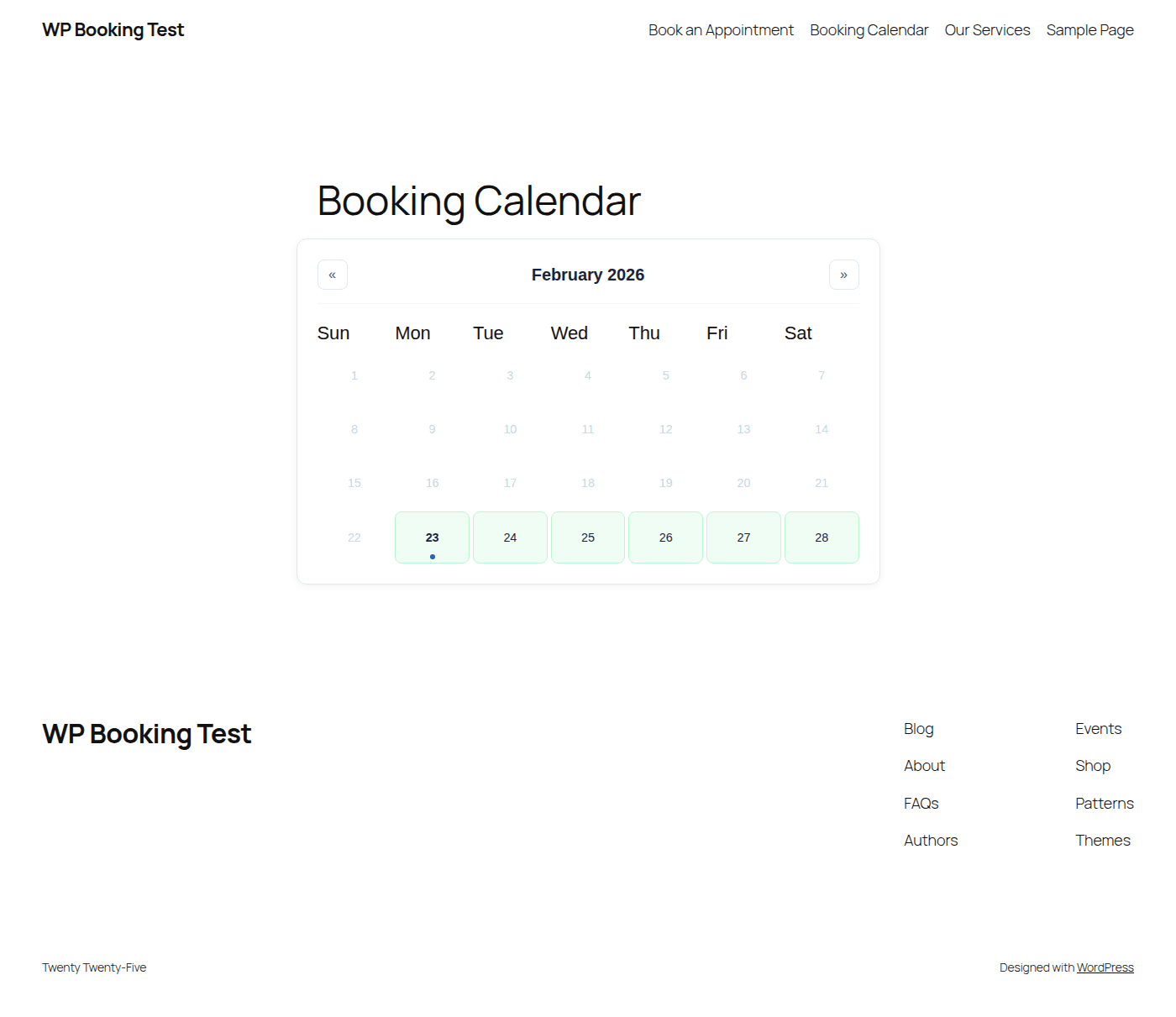
[booking_form service="haircut" staff="jane" style="modern" show_calendar="true"][booking_calendar] — Calendar Display
Displays an interactive calendar showing available and booked time slots. Useful for letting visitors check availability before booking.
| Attribute | Description | Example |
|---|---|---|
| view | Calendar view mode (month, week, day) | view="week" |
| service | Filter calendar by service slug | service="consultation" |
| staff | Filter calendar by staff slug | staff="dr-smith" |
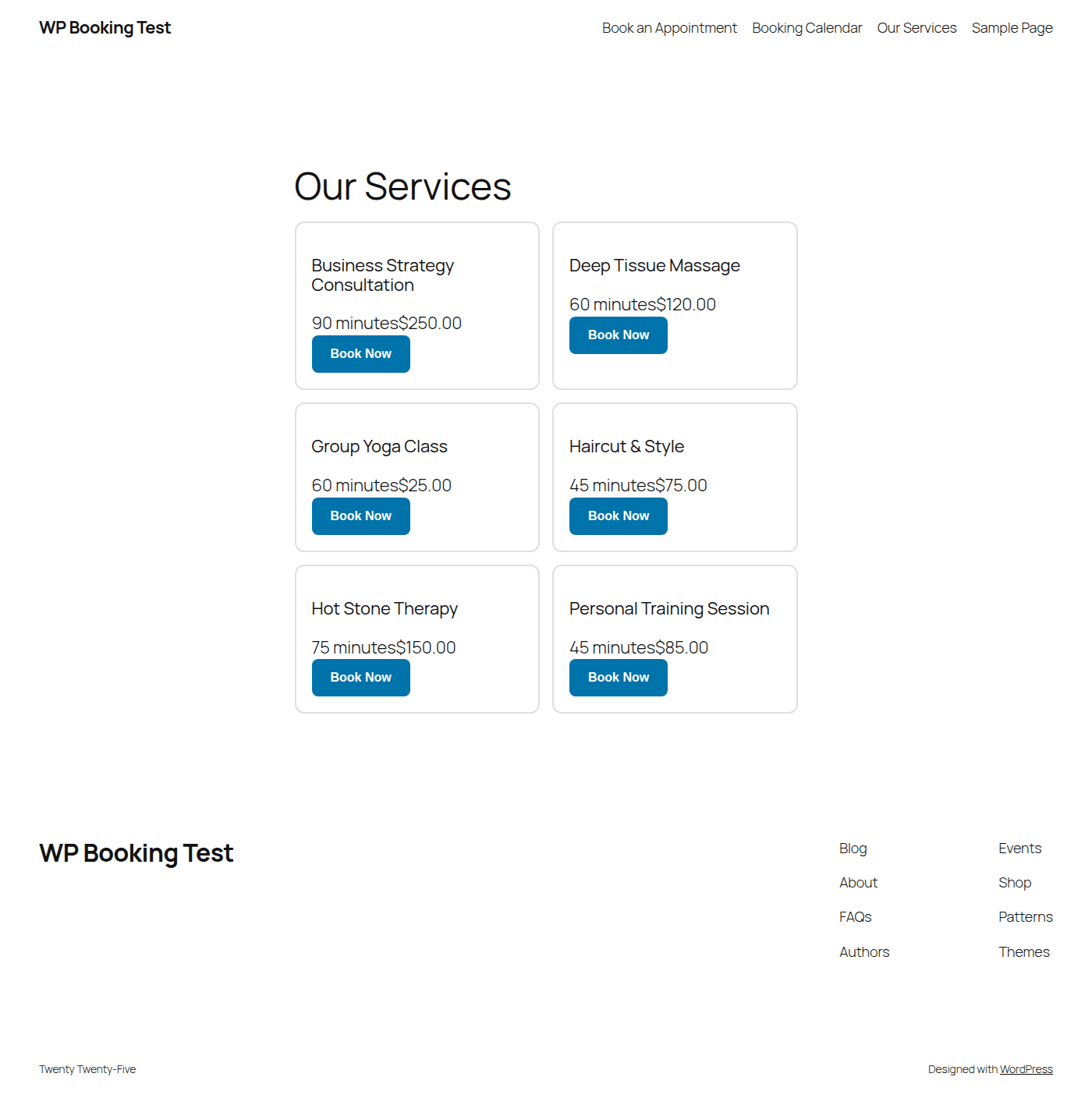
[booking_services] — Service Listing Grid
Renders a responsive grid of all available services with images, descriptions, pricing, and a “Book Now” button.
| Attribute | Description | Example |
|---|---|---|
| category | Filter services by category slug | category="wellness" |
| limit | Maximum number of services to display | limit="6" |
| columns | Grid columns (1, 2, 3, or 4) | columns="3" |
| show_booking_button | Show or hide the booking button (true/false) | show_booking_button="true" |
[booking_popup]
Renders a button that opens the full booking form in a popup overlay.
[booking_popup text="Schedule Now" service="massage"][booking_button]
Renders a simple inline button that links directly to the booking page for a specific service.
[booking_button text="Book Haircut" service="haircut" css_class="my-btn"]Form Builder & Customization
The built-in form builder lets you customize every aspect of the booking form without writing code. Access it under WP Booking System → Form Builder.
Color Schemes
Choose from preset color schemes or define custom brand colors for buttons, headers, and accents.
Layout Templates
Select from horizontal, vertical, or card-based layouts. Responsive designs adapt to all screen sizes.
Field Customization
Add, remove, reorder, and make fields required or optional. Supports text, dropdown, checkbox, and file upload fields.
Live Preview
See changes in real time as you customize the form. Preview desktop and mobile views side by side.
Email Notification Templates
The following email templates are triggered by dashboard actions. Customize them under WP Booking System → Email Templates.
Booking Rescheduled (to Customer)
Sent when a booking is rescheduled by the customer, staff, or admin. Includes the old date/time, new date/time, and reschedule reason.
Booking Rescheduled (to Staff)
Notifies the assigned staff member about the rescheduled appointment.
Booking Cancelled (to Customer)
Confirms the cancellation to the customer, includes refund details if applicable.
Booking Cancelled (to Admin)
Notifies the administrator about the cancellation for record-keeping.
Shortcode Quick Reference
| Shortcode | Purpose | Key Attributes |
|---|---|---|
[booking_form] | Full inline booking form | service, staff, style, show_calendar |
[booking_calendar] | Interactive availability calendar | view, service, staff |
[booking_services] | Service listing grid | category, limit, columns, show_booking_button |
[booking_popup] | Popup booking button | text, service, css_class |
[booking_button] | Simple booking link button | text, service, css_class |
Dashboard Ready!
Your customer dashboard is now set up. Customers can view, reschedule, cancel, and download their bookings from a single self-service page.
Next: Troubleshooting Guide