01Dashboard
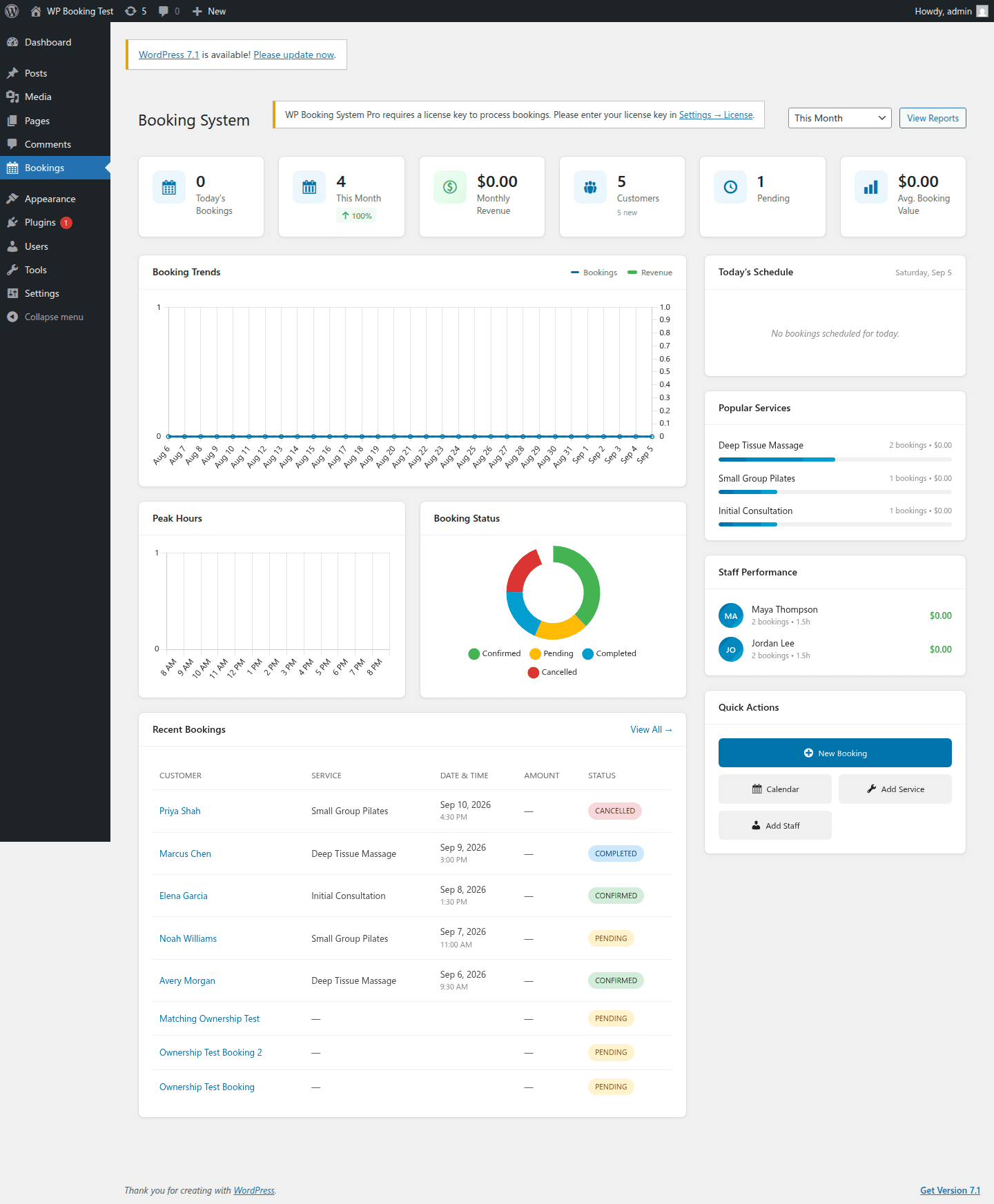
Know what needs attention.
Review today’s schedule, booking activity and quick actions without leaving WordPress.
The WordPress booking plugin for your business
Turn a visit to your website into a booking. Let clients choose a time, book a service and pay—while you manage the details in WordPress.
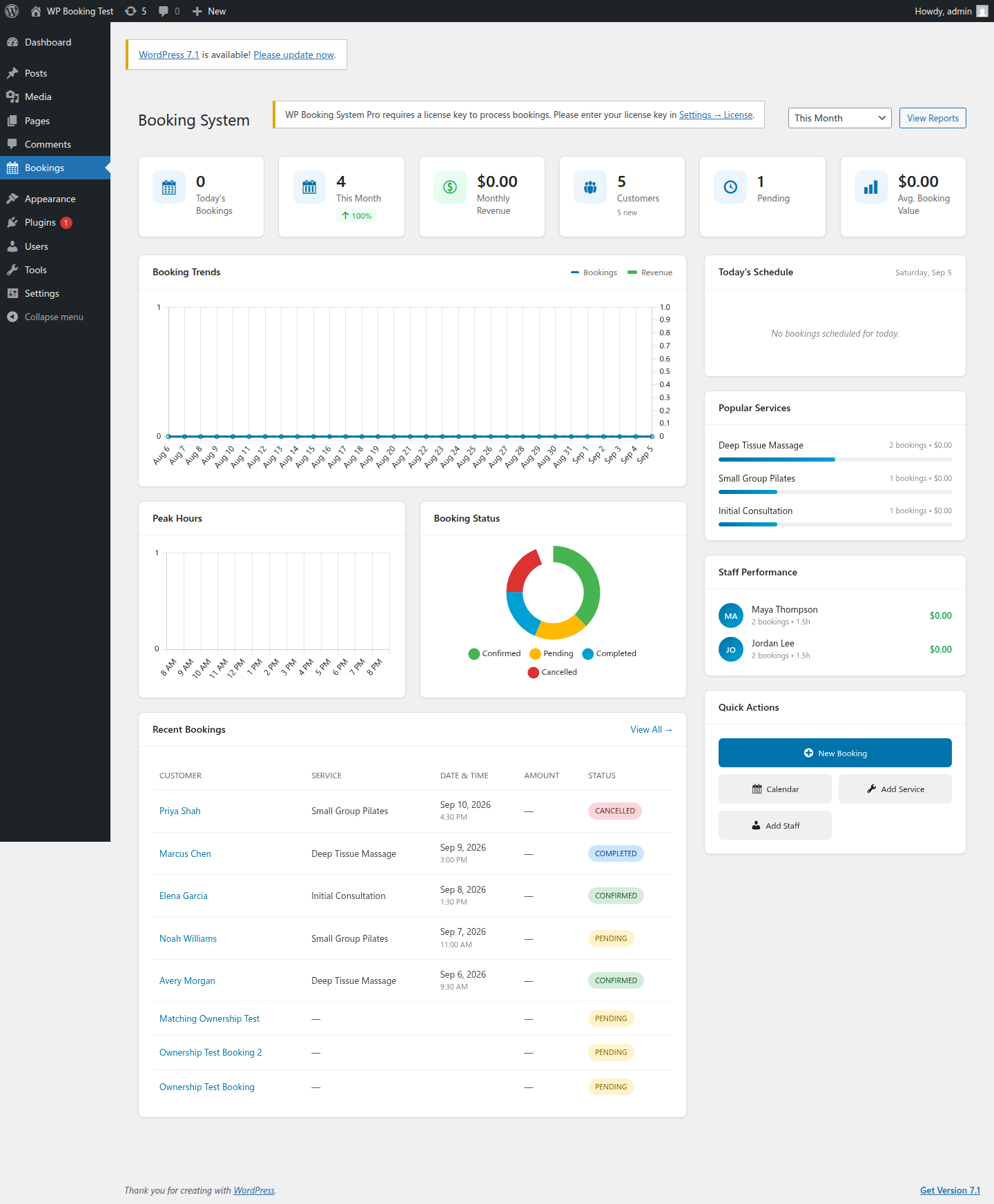
Scroll to explore · 3 scenes
See the pieces your team uses most: a quick overview, a visual calendar and the service catalog behind your booking form.
Review today’s schedule, booking activity and quick actions without leaving WordPress.
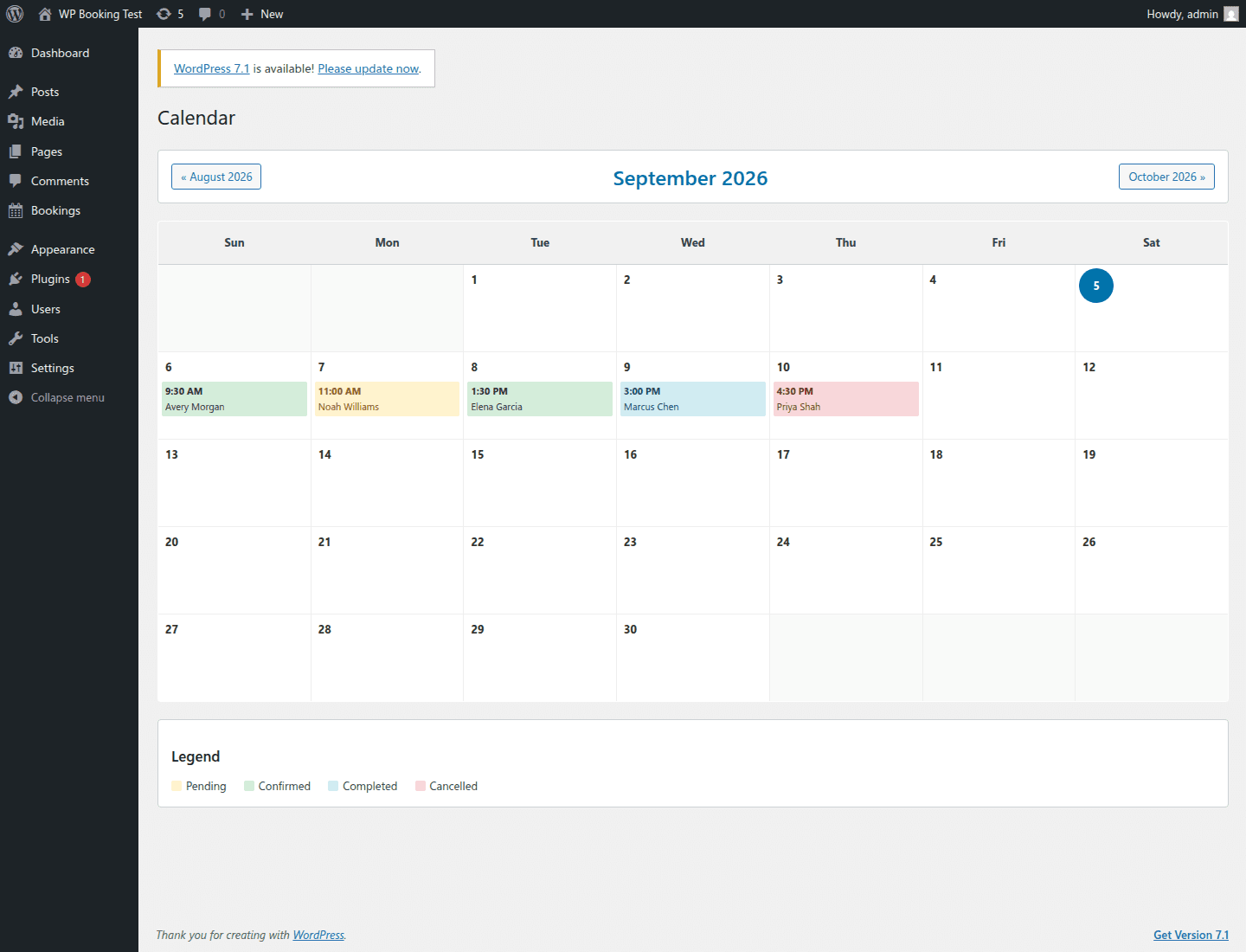
Move from a list of bookings to a calendar view your team can scan quickly.
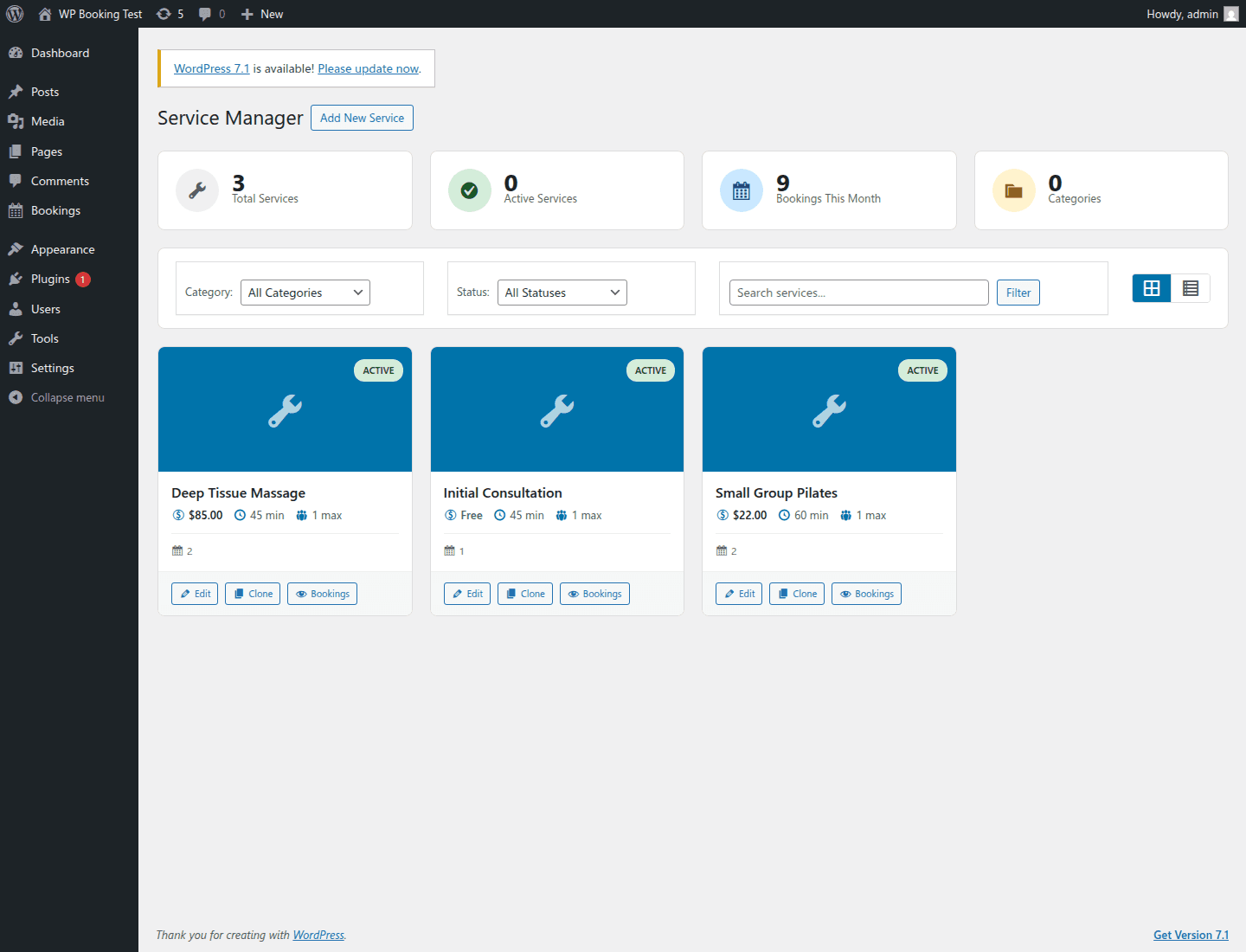
Set names, durations, prices and capacity so the public form reflects your real workflow.
See how it works
A practical workflow for your team and your customers. Explore the setup guides before you decide.
Add a service, its duration and price. Assign staff, working hours and breaks so customers can choose from your availability.
Service setup guideAdd a booking form to a WordPress page with a shortcode. Customers choose their service, date and time, then enter their details.
Publishing your first formReview bookings in your dashboard, configure confirmation emails and give customers a place to manage their appointments.
Customer dashboard guideMore than a time slot
Recurring appointments
Configure weekly, biweekly or monthly bookings. Manage individual appointments within a series.
Explore recurring appointmentsGroup bookings
Set participant limits for classes and workshops, with availability based on the places remaining.
Explore group bookingsPrepaid packages
Create session bundles, set expiry dates and track the remaining balance as customers book.
Explore prepaid packagesForms & notifications
Collect booking details with custom fields. Configure email messages and optional Twilio SMS notifications.
Explore forms & notificationsWhere it fits
Salons can organize staff availability. Coaches can offer recurring sessions and packages. Studios can set class capacities. Choose the setup that fits your business.
Find a workflow for your businessConnect your existing tools
Choose the connections your business needs. Each integration needs its own setup; external accounts and charges are separate from your plugin license.
Read the integration guideUnderstand the workflow
WP Booking Pro connects the services you sell, the people who deliver them and the time customers can reserve. Here is how those pieces fit together.
Booking forms & service selection
A contact form starts a conversation. An appointment booking form asks customers to choose a service, date and available time before submitting their details. Publish [booking_form] on a WordPress page alongside your service description, location and preparation instructions. Use custom fields for the details your team needs before the appointment, rather than asking every customer the same questions by email.
Staff scheduling & availability
Set up staff profiles, assign the services each person provides and configure weekly working hours. Breaks, time off and date-specific exceptions help describe when a team member is available. Start with one service and one staff schedule, check the time slots shown on the public form, then expand the setup. A service duration and a staff working day are different settings: configure both before accepting bookings.
Staff availability setupClasses & recurring appointments
A private appointment reserves time for an individual customer. A group class needs a participant limit and a count of remaining places. Recurring appointments organize repeat visits into a series, while session packages track a prepaid balance. These solve different needs: choose capacity for a workshop, recurrence for an ongoing schedule and a package when selling a defined number of sessions.
Class capacity and group booking guideCustomer portal & notifications
The customer dashboard gives clients a place to review appointments and access rescheduling or cancellation options under your configured policies. Pair it with confirmation emails that explain the service, time, location and what to bring. Optional Twilio SMS adds a separate notification channel. Test message delivery and customer access before launch; adding a template alone does not verify your email or SMS configuration.
Customer self-service dashboard guideFind your starting point
Configure the booking experience around how you deliver a service—not just an empty calendar. These are example workflows, not customer endorsements.
List treatments separately with their own durations and prices. Assign staff who provide each treatment, set their working hours and include arrival instructions in confirmation messages. Customers can start from the service they need, while your team manages appointments in WordPress.
Salon booking workflowsUse group capacity for instructor-led sessions and individual appointments for private training. Plan the instructor schedule alongside the class timetable. If you also offer packages, define the session allowance and expiry clearly so clients understand what they are buying.
Fitness studio booking workflowsOffer an initial consultation and follow-up sessions as distinct services. Collect a short brief through custom booking fields and explain meeting arrangements in the confirmation email. For ongoing engagements, review the recurring appointment options before building the schedule.
Consultation booking workflowsBefore your first live booking
You need a WordPress website that allows plugin installation and administrator access to upload the ZIP and activate your license. Review the installation guide with your hosting provider, and test on a staging site before changing a busy production website.
Installation requirements and stepsOne plugin. Two ways to pay.
Both plans include all plugin features and unlimited websites you own or manage. All prices are in USD.
Install the plugin ZIP in WordPress, then activate it with the license key provided after payment.
Check installation requirementsStart with flexibility
$19.99/month
A recurring subscription.
Cancel through PayPal.
After cancellation, new booking submissions stop at the end of the billing period. Existing bookings and admin access remain.
No license renewals
$399one-time
One payment for a perpetual license.
No recurring plugin charge.
A lifetime license does not include third-party service fees. See the terms for license, support and refund conditions.
Install and activate WP Booking Pro, enter your license key, then configure a service and its availability. Add [booking_form] to a WordPress page using a Shortcode block. Preview the page and submit a test booking before sharing it with customers.
Yes. Staff profiles support their own weekly availability, service assignments, breaks and time off. Configure service durations as well as staff hours, then check the available slots on the customer-facing booking form.
The customer dashboard provides booking history and self-service rescheduling and cancellation options under your configured policies. Set up the dashboard page and customer access, then test the full flow and explain your cancellation rules before launch.
No. Group booking controls how many participants can reserve a class or workshop. Recurring booking schedules repeated appointments in a series. A session package is different again: it tracks a prepaid session allowance and expiry. Choose the feature that matches how you deliver your service.
After payment, you receive a license key and access to download the plugin ZIP. Install it in WordPress and enter the key under Bookings > Settings > License to activate WP Booking System Pro.
Both the monthly subscription and lifetime license cover unlimited websites that you own or manage. The license is non-transferable and cannot be resold.
Yes. Configure weekly, biweekly or monthly appointments and manage individual occurrences in a series. You can also create prepaid session packages with expiry dates and track the remaining session balance.
SMS notifications require your own Twilio account, phone number and messaging balance. Connect your credentials and configure message templates in the plugin. Twilio charges are separate from the plugin license; longer messages may use multiple billable segments.
The plugin supports Stripe and WooCommerce payment integration. To offer methods such as PayPal through WooCommerce, install WooCommerce and configure the appropriate payment gateway. Processor fees and any paid gateway extensions are separate. Purchasing the plugin itself uses PayPal checkout.
You can cancel through PayPal or contact support@bookingisimple.com. Your license remains active until the end of the current billing period. After that, new booking submissions are disabled; existing bookings, admin access and calendar views continue to work.
The $399 USD one-time payment provides a perpetual plugin license with no renewal requirement. Updates are included during active product development, and email support is included for the lifetime of the product. Third-party service fees are not included.
Email support is available while your subscription or lifetime license is active. The terms state that lifetime licenses are non-refundable after 30 days; they do not establish an unconditional money-back guarantee. Review the terms and contact support@bookingisimple.com about your situation before purchasing.
Your next step