Services Management
Create, configure, and manage every bookable service your business offers
What Are Services?
Services are the foundation of WP Booking System Pro. Each service represents a bookable offering—a haircut, massage, consultation, class, or any appointment type your business provides. Every booking on your site is tied to a service, making this the first thing you should set up after installing the plugin.
Key Capabilities at a Glance
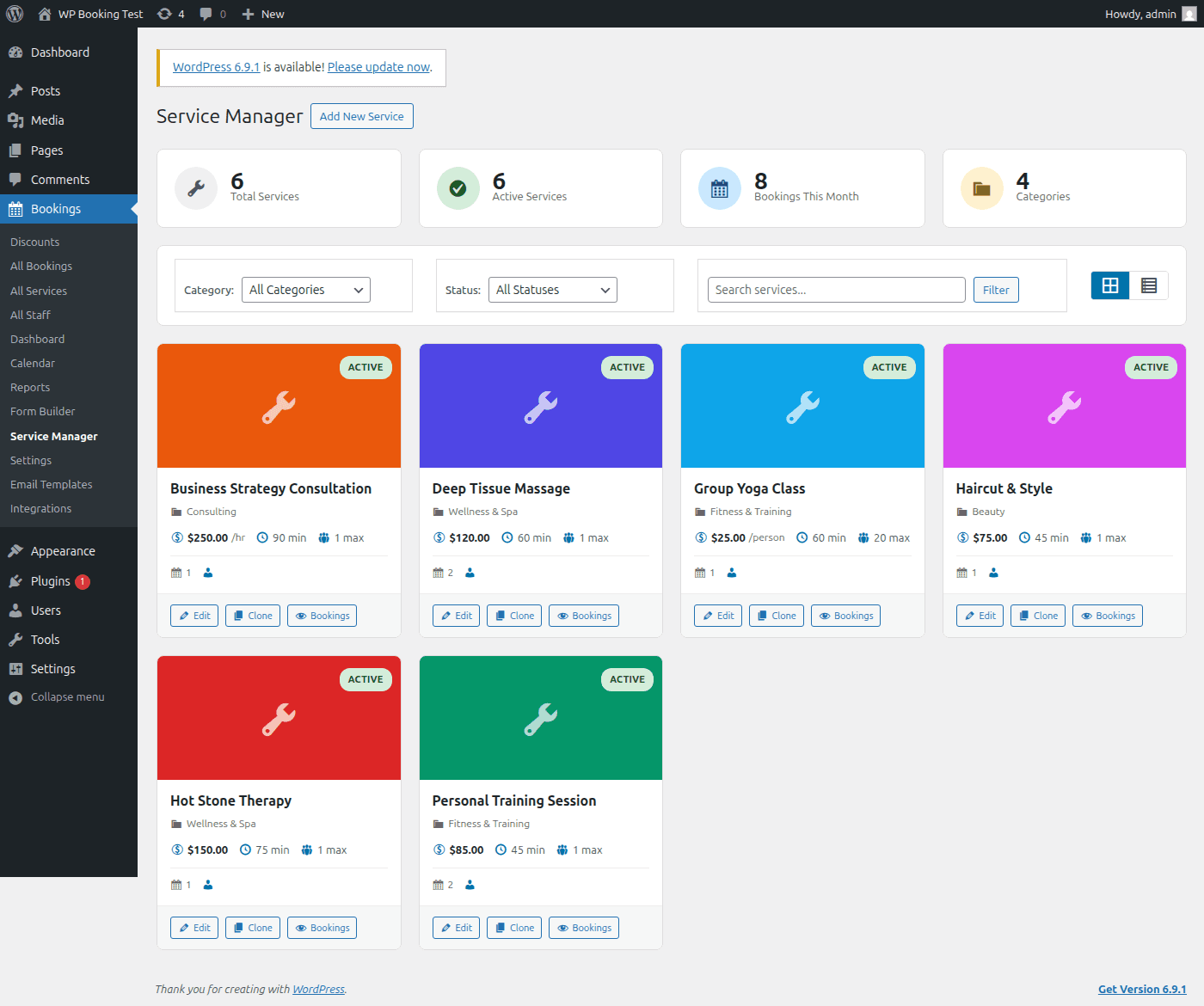
The Service Manager page — your central hub for managing all services
Creating a New Service
Follow these steps to add a new bookable service to your WordPress site. The process walks you through every field and option available on the service editor screen.
Navigate to Add New Service
In your WordPress admin sidebar, go to Bookings → Services → Add New. This opens a blank service editor with all available meta boxes.
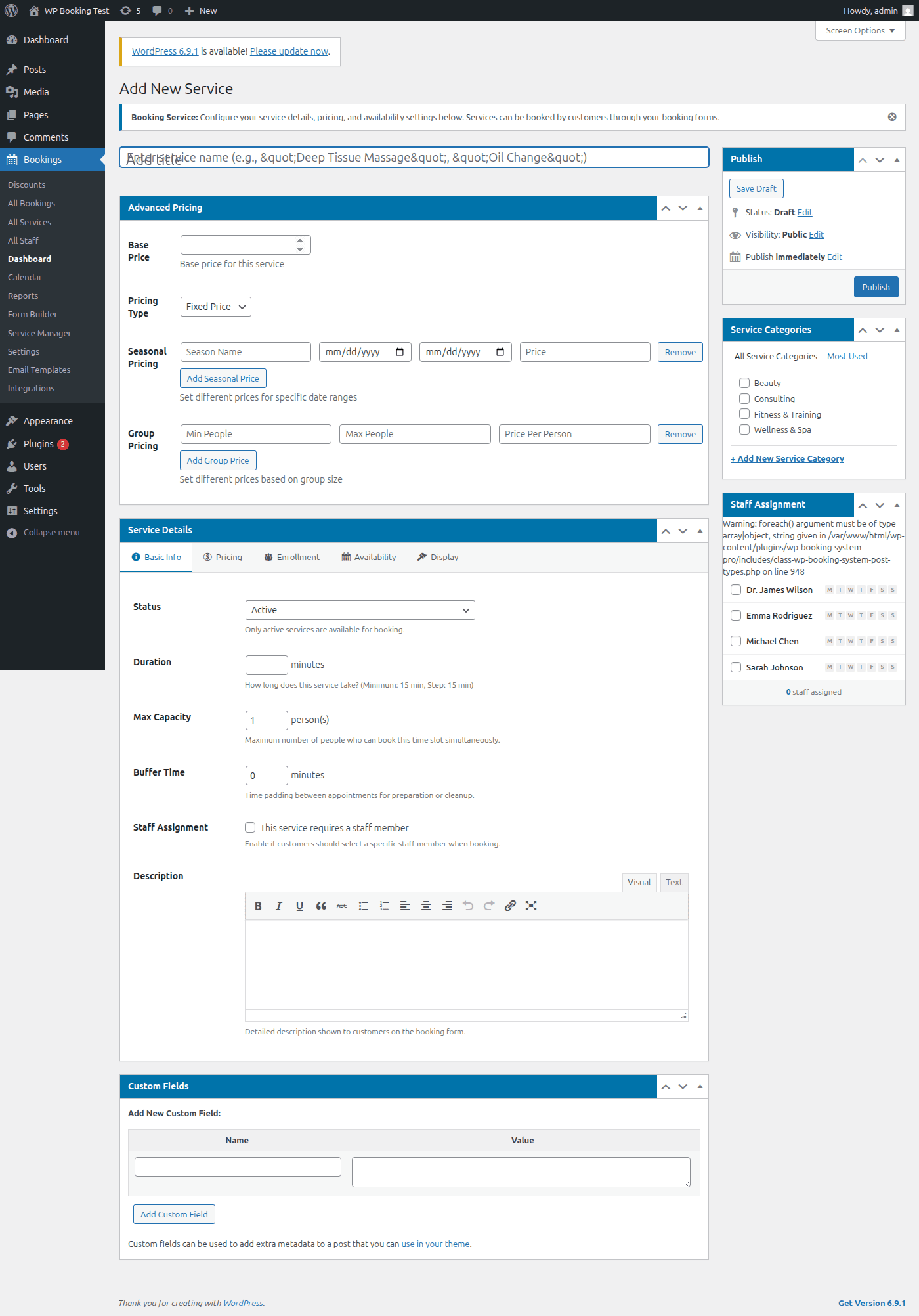
The Add New Service screen with all configurable fields
Enter Service Name & Description
- Type a clear, descriptive Service Name (e.g., "Deep Tissue Massage", "Tax Consultation", "Yoga Class"). This name appears on the booking form, calendar, and in confirmation emails.
- Add a Description in the rich text editor below. Describe what the service includes, what the customer should expect, and any preparation instructions. HTML formatting is supported.
SEO Tip: Use descriptive, keyword-rich service names. Instead of "Service A", use "60-Minute Swedish Massage". This helps both your customers and search engines understand what you offer.
Set Duration
The Duration field determines how long each appointment lasts. Enter the value in minutes. The booking calendar uses this to calculate available time slots and prevent overlapping appointments.
- • Enter the number of minutes (e.g., 30, 60, 90, 120)
- • For multi-hour services, use total minutes (e.g., 180 for 3 hours)
- • Duration directly affects how many slots appear per day
Pro Tip
If your service length varies by staff member, you can override the default duration on a per-staff basis in the Staff Assignment section (covered below).
Configure Pricing
WP Booking System Pro supports three pricing models. Choose the one that best fits your business:
Fixed Price
A single flat rate regardless of appointment length. Best for standardized services like a single haircut ($40) or a standard consultation ($100).
Hourly Price
The final price is calculated based on the service duration. Enter the rate per hour (e.g., $75/hr). A 90-minute session at $75/hr would be automatically priced at $112.50.
Per-Person Price
The total scales with the number of attendees. Ideal for classes, workshops, and group activities. If the price is $25 per person and 4 people book, the total is $100.
Important: The currency symbol and format are controlled by your global plugin settings under Bookings → Settings → General. Make sure your currency is configured before setting prices.
Set Capacity
Capacity defines the maximum number of bookings (or attendees, when multi-attendee is enabled) allowed per time slot. Once the capacity is reached, that slot becomes unavailable on the booking form.
- • Set to 1 for one-on-one appointments (e.g., personal training, private consultations)
- • Set to a higher number for group classes (e.g., 20 for a yoga class)
- • Leave at 0 or blank for unlimited capacity
Add Buffer Time
Buffer time adds padding between consecutive bookings. This prevents back-to-back appointments and gives staff time to prepare, clean up, or transition between clients.
- Enter the buffer in minutes (e.g., 15)
- The buffer is added after the service duration when calculating the next available slot
- A 60-minute service with a 15-minute buffer blocks a total of 75 minutes on the calendar
Example
A salon offers a 45-minute haircut with a 10-minute buffer. If the first appointment starts at 9:00 AM, the next available slot begins at 9:55 AM (45 min + 10 min buffer), not 9:45 AM.
Choose a Status & Publish
Before saving, select the appropriate status for your service:
Active
Visible on the booking form and available for new bookings
Inactive
Hidden from the booking form. Existing bookings are preserved.
Draft
Saved but not published. Only visible to admins in the dashboard.
Click "Publish" to save the service. You can always return to edit it later.
Service Editor — All Meta Boxes Explained
The service edit screen contains several meta boxes, each controlling a different aspect of the service. Below is a detailed breakdown of every option available when editing a service.
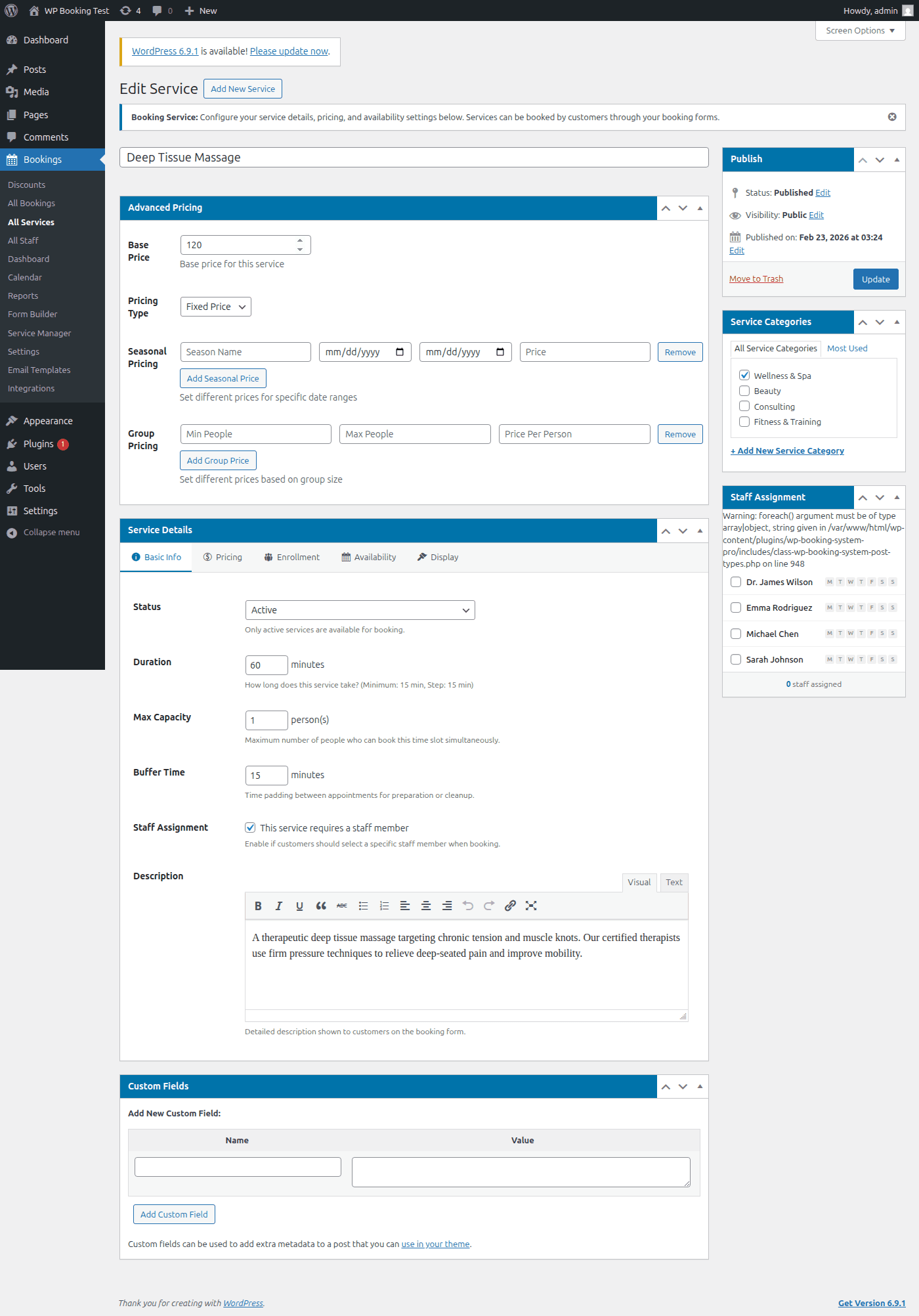
The service edit screen with all meta boxes expanded
Display Settings
Control how this service looks on the booking calendar and frontend forms.
Service Color
Use the color picker to assign a unique color to this service. The chosen color is used as the background highlight for this service's bookings on the admin calendar view, making it easy to distinguish between different service types at a glance. Choose contrasting colors when you have many services to maximize readability.
Service Image
Upload or select a featured image from the WordPress Media Library. This image appears alongside the service name on the booking form when customers browse available services. Recommended size: 800 × 600 pixels. Use high-quality images that represent the service visually.
Service Categories
Service categories are a WordPress taxonomy that lets you organize services into logical groups. Customers can filter services by category on the booking form, improving the user experience when your business offers many services.
- In the Service Categories meta box on the right sidebar, click "+ Add New Category"
- Type the category name (e.g., "Hair", "Nails", "Massage")
- Optionally assign a parent category for nested grouping
- Check all applicable categories for the current service
Pro Tip
You can also manage categories in bulk from Bookings → Service Categories. Use hierarchical categories for complex businesses — for example, "Beauty → Hair" and "Beauty → Nails".
Staff Assignment
Assign one or more staff members who can perform this service. Staff assignment controls which providers appear in the booking form when a customer selects this service, and determines schedule availability.
Assign Staff Members
Use the checkbox list to select which staff members can provide this service. Only staff members who are assigned will appear as selectable options on the booking form for this service.
Primary Staff Toggle
Mark one staff member as the Primary provider. The primary staff member is pre-selected by default on the booking form and appears first in the staff dropdown. This is useful when you have a lead provider for a service.
Custom Price per Staff
Override the default service price for specific staff members. For example, a senior therapist might charge $120 for a massage while a junior therapist charges the default $80. Leave blank to use the service's base price.
Custom Duration per Staff
Override the default service duration for specific staff members. A faster stylist might complete a haircut in 30 minutes while others need 45. Leave blank to use the service's default duration.
Note: Staff members must be created first under Bookings → Staff before they can be assigned to services. See the Staff Management guide for details.
Multi-Attendee Enrollment
Enable group bookings where one person registers multiple attendees in a single transaction. This is ideal for courses, workshops, team-building events, and corporate training sessions.
Enable / Disable
Check "Enable multi-attendee enrollment" to activate group registration for this service. When enabled, additional configuration fields appear below.
Max Attendees per Booking
Set the maximum number of people one registration can include. The default is 10. This limit is enforced on the frontend form — the "Add Attendee" button is disabled once the limit is reached.
Tier 1 Price (First Attendee)
The price charged for the first (primary) attendee. If left blank, the base service price is used. This represents the full-price registration.
Tier 2 Price (Additional Attendees)
The discounted price for each additional attendee beyond the first. Use this to offer group discounts. For example, Tier 1 = $100, Tier 2 = $75 gives a 25% discount for every extra person.
Company Name & TAX ID Fields
Optionally require a company name and TAX ID on the booking form. When enabled, the system performs live duplicate detection on the TAX ID to prevent the same company from registering twice for the same event and date.
For a comprehensive walkthrough of multi-attendee enrollment including email notifications, bank transfer support, and admin management, see the Multi-Attendee Enrollment documentation.
Service List & Management
The service list page provides an overview of all your services in a sortable, filterable table. You can quickly view key information, perform bulk actions, and access individual service settings.
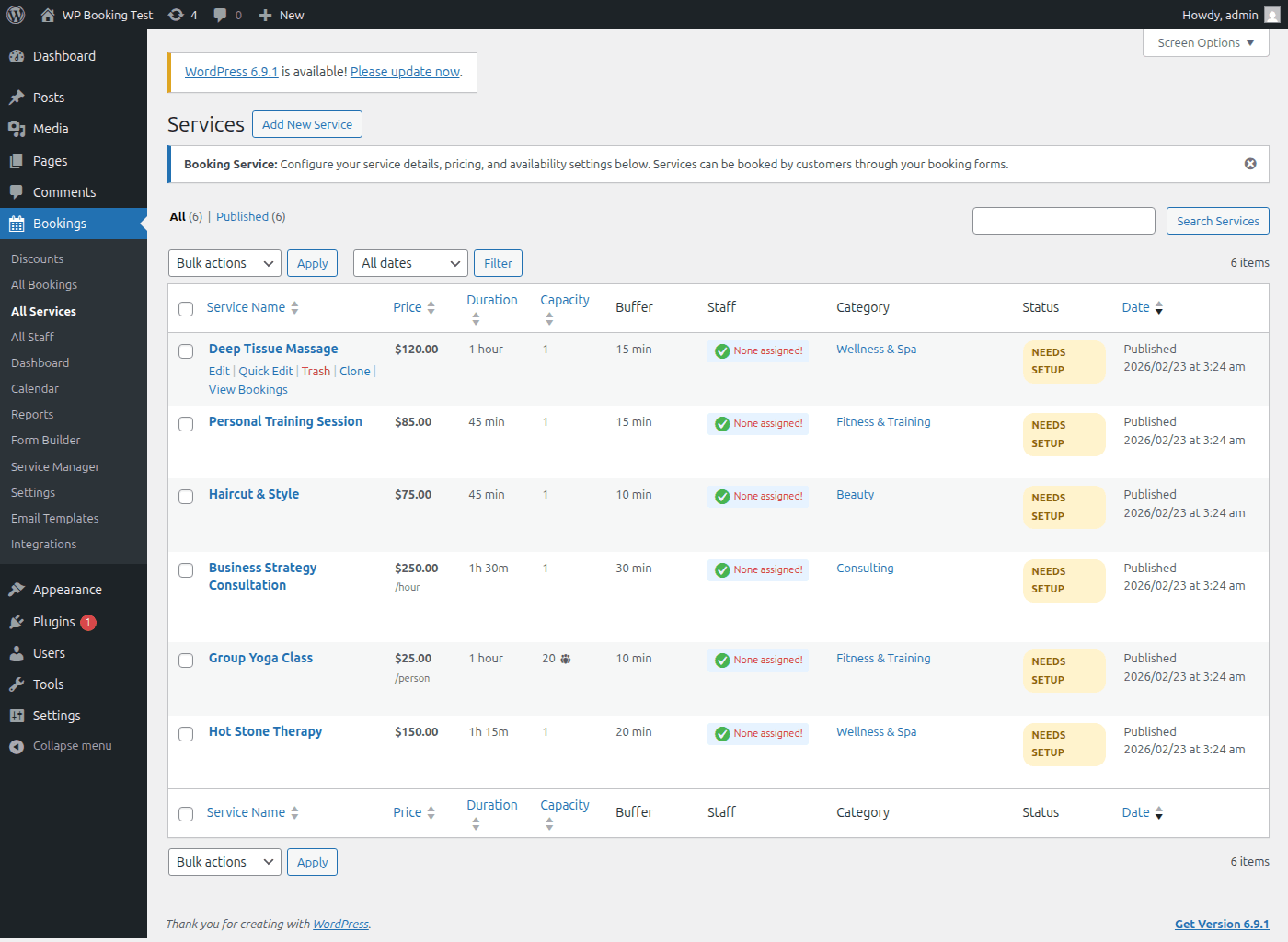
Service list with columns showing status, price, duration, capacity, and quick actions
List Columns
| Column | Description |
|---|---|
| Service Name | Name with color swatch indicator. Click to edit. |
| Category | Assigned service categories for quick reference. |
| Duration | Appointment length displayed in a human-readable format (e.g., "1h 30m"). |
| Price | Base price with pricing type label (fixed, hourly, per-person). |
| Capacity | Maximum bookings per slot. Shows "Unlimited" if not set. |
| Status | Active, Inactive, or Draft with a colored status badge. |
| Actions | Edit, Clone, View Bookings, and Delete quick-action buttons. |
Quick Actions
Clone Service
Duplicates the entire service including all settings, pricing, staff assignments, and enrollment configuration. The cloned service is created in Draft status with "(Copy)" appended to the name. This is the fastest way to create similar services with minor variations.
View Bookings
Opens the bookings list pre-filtered to show only bookings for this specific service. Useful for checking upcoming appointments, reviewing revenue per service, or auditing past bookings.
Bulk Editing Services
Select multiple services using the checkboxes on the left side of the list, then choose a bulk action from the dropdown. The following bulk operations are available:
Change Status
Set all selected services to Active, Inactive, or Draft at once.
Update Price
Apply a new base price to all selected services simultaneously.
Update Duration
Change the appointment length for multiple services in one action.
Update Capacity
Set a new capacity limit across all selected services.
Update Buffer Time
Adjust the buffer between appointments for all selected services.
Delete
Permanently remove all selected services. This cannot be undone.
Warning: Bulk delete is irreversible. Always double-check your selection before confirming. Consider setting services to Inactive instead of deleting them to preserve historical booking data.
Best Practices
Use Clear, Descriptive Names
Avoid generic names like "Service 1". Instead, use names that tell customers exactly what they are booking: "90-Minute Deep Tissue Massage", "Initial Tax Consultation (30 min)", or "Group Yoga Class". This improves both usability and SEO.
Always Set Buffer Time
Even a 5-minute buffer prevents back-to-back bookings that can lead to delays and frustrated clients. For services requiring room cleanup or equipment reset, use 15–30 minutes.
Assign Distinct Colors
When you have more than three services, assign each a unique, contrasting color. This makes the admin calendar instantly readable and helps staff identify appointment types at a glance.
Leverage Categories for Large Catalogs
If your business offers more than 10 services, organize them into categories. This allows customers to filter the booking form and find the right service faster, reducing abandonment rates.
Clone Instead of Recreating
When adding a service that is similar to an existing one, use the Clone action to duplicate it. Then modify only the fields that differ. This saves time and ensures consistent configuration across related services.
Test Before Going Live
Create services in Draft status first. Test the entire booking flow including staff availability, pricing calculations, and confirmation emails before setting the status to Active.
Frequently Asked Questions
Can I offer the same service at different prices for different staff?
Yes. In the Staff Assignment section of the service editor, you can set a custom price for each assigned staff member. If a staff member does not have a custom price, the base service price is used.
What happens to existing bookings when I deactivate a service?
All existing bookings are preserved. Setting a service to Inactive only hides it from the booking form so no new bookings can be made. Past and upcoming bookings remain accessible in the admin dashboard.
How does capacity work with multi-attendee enrollment?
When multi-attendee is enabled, capacity counts individual attendees rather than bookings. A service with capacity 20 and an existing booking of 5 attendees has 15 remaining spots. The booking form enforces this limit automatically.
Can I change the pricing type after bookings exist?
Yes, but exercise caution. Changing the pricing type only affects future bookings. Existing bookings retain the price that was calculated at the time of booking. Review your upcoming bookings after making pricing changes.
How many services can I create?
There is no limit on the number of services. WP Booking System Pro supports as many services as your business requires. Use categories and clear naming conventions to keep them organized.
Does buffer time apply between different services or only the same service?
Buffer time applies per staff member regardless of the service. If a staff member finishes a massage at 2:00 PM with a 15-minute buffer, their next available slot for any service starts at 2:15 PM.
Services Configured!
Your services are set up and ready to accept bookings. Next, assign staff members and configure their availability schedules so customers can choose a provider and time slot.