Calendar View
Visualize and manage all your bookings in a powerful, interactive calendar
Calendar Overview
The Calendar View provides a visual overview of all your bookings across services and staff members. Access it from the WordPress admin sidebar under Bookings → Calendar. The calendar supports month, week, and day views, color-coded events by service, drag-and-drop rescheduling, and powerful filtering — giving you complete control over your schedule at a glance.
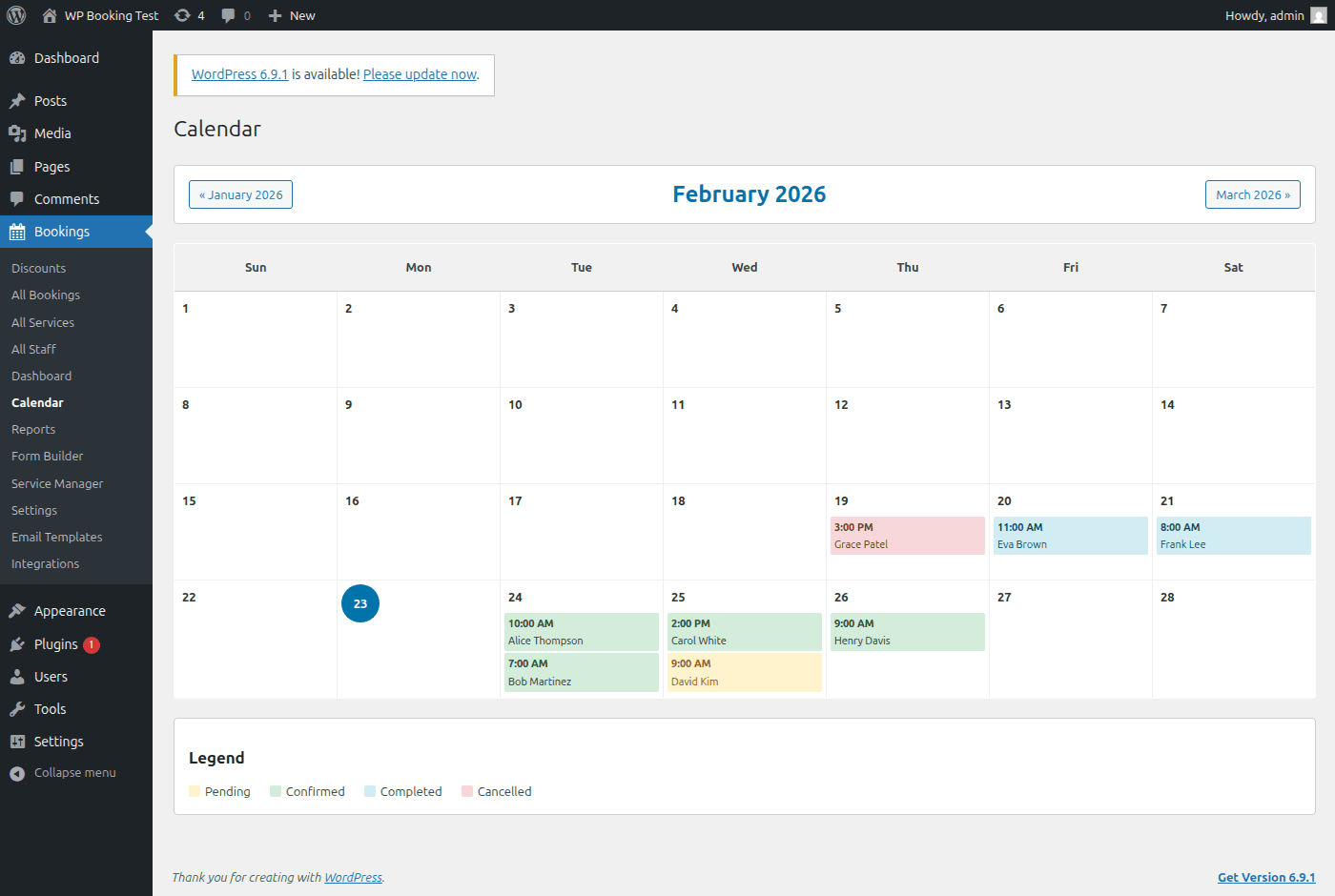
Accessing the Admin Calendar
How to Open the Calendar
- Log into your WordPress admin dashboard.
- In the left sidebar, click Bookings to expand the submenu.
- Click Calendar from the submenu options.
- The calendar loads showing the current month by default, with all bookings displayed as color-coded event blocks.
Tip: Bookmark the calendar page in your browser for quick access. The URL follows the pattern yoursite.com/wp-admin/admin.php?page=wp-booking-calendar.
Month, Week & Day Views
Switch between three view modes using the buttons in the top-right corner of the calendar. Each view provides a different level of detail to suit your workflow.
Month View
See the full month at once. Best for high-level scheduling and spotting busy or open periods.
Week View
Displays a 7-day grid with hourly time slots. Ideal for managing day-to-day operations.
Day View
Zooms into a single day with detailed time slots. Perfect for busy days with many appointments.
Switching Between Views
- Locate the view toggle buttons in the top-right corner of the calendar header — labeled Month, Week, and Day.
- Click the desired view button. The calendar reloads instantly to show the selected timeframe.
- Your chosen view persists across page refreshes and browser sessions — the calendar remembers your preference.
Navigation Controls
Getting Around the Calendar
The calendar toolbar includes navigation controls to move through dates quickly:
Previous / Next Arrows
Navigate forward or backward by one period (month, week, or day, depending on the current view). Click the left arrow to go back, right arrow to advance.
Today Button
Instantly jumps the calendar back to today's date, regardless of how far you have navigated. The current day is always highlighted with a subtle accent border.
Date Header
The header displays the currently visible period. Click it to open a date-picker for jumping directly to any month or year.
Color Coding by Service
Each service in your system is assigned a unique color. Bookings for that service appear on the calendar using the assigned color, making it easy to distinguish between different appointment types at a glance.
Changing a Service Color
- Go to Bookings → Services.
- Click Edit on the service you want to update.
- Find the Calendar Color field and click the color swatch.
- Select a new color from the picker or enter a hex value.
- Click Save Service. The calendar updates immediately.
Tip: Choose colors with high contrast from one another. Avoid using similar shades (e.g., light blue and light teal) for different services — this makes the calendar harder to read, especially in month view where event blocks are small.
Filtering by Staff & Service
Using Calendar Filters
When you have many services and staff members, filters help you focus on exactly what matters. Filter dropdowns are located in the calendar toolbar, directly below the navigation controls.
Filter by Staff Member
- Click the Staff dropdown in the toolbar.
- Select one or more staff members from the list.
- The calendar immediately updates to show only bookings assigned to the selected staff.
- Select All Staff to reset the filter.
Filter by Service
- Click the Service dropdown in the toolbar.
- Select one or more services to display.
- Only bookings matching the selected services remain visible.
- Select All Services to clear the filter.
Combining Filters
You can apply both filters simultaneously. For example, select staff member "Jane" and service "Massage" to see only Jane's massage appointments. This is particularly useful for reviewing a specific team member's workload for a particular service.
Tip: Filter selections are preserved in the URL query string. You can share a filtered calendar URL with a team member to show them exactly the view you need them to see.
Viewing & Editing Booking Details
Click to View Details
Clicking on any booking event in the calendar opens a detail popover with key information:
Popover Shows
- • Customer name and contact info
- • Service name and duration
- • Assigned staff member
- • Booking date and time
- • Payment status and amount
- • Booking status (Confirmed, Pending, Cancelled)
Quick Actions
- • Edit — Opens the full booking editor
- • Confirm — Change status to Confirmed
- • Cancel — Cancel the booking
- • Reschedule — Change date/time
- • Send Email — Email the customer
- Click on any event block in the calendar.
- A popover appears with booking summary and quick-action buttons.
- Click Edit to open the full booking editor in a side panel.
- Make your changes (date, time, staff, notes, status).
- Click Save Changes to update the booking. The calendar refreshes automatically.
Drag-and-Drop Rescheduling
Rescheduling a booking is as simple as dragging it to a new time slot. This feature works in all three views (month, week, and day).
How to Drag-and-Drop
- Hover over the booking event you want to move — the cursor changes to a grab icon.
- Click and hold the event block.
- Drag it to the desired date (month view) or time slot (week/day view).
- Release to drop the booking in its new position.
- A confirmation dialog appears asking you to confirm the change.
- Click Confirm Reschedule to save, or Cancel to revert.
Drag Behavior by View
- Month view: Moves the booking to a different date, keeping the original time.
- Week view: Moves the booking to a different day and/or time slot within the week.
- Day view: Moves the booking to a different time slot on the same day. You can also resize an event from the bottom edge to change its duration.
Warning: Drag-and-drop rescheduling will trigger a notification email to the customer if email notifications are enabled. To reschedule silently, use the Edit panel and uncheck "Send notification" before saving.
Staff Availability Integration
The calendar integrates directly with staff availability settings, giving you a clear picture of when team members are available and when they are not.
How Availability Is Displayed
Available Slots
White or light-background cells indicate the staff member is available during that period. Bookings can be created or dragged into these slots.
Unavailable / Off-Hours
Gray hatched cells indicate the staff member is not available. These are determined by the working hours configured in Bookings → Staff → Working Hours.
Blocked / Time-Off
Red-tinted cells indicate days or time ranges blocked via the staff member's time-off schedule. Bookings cannot be placed in these slots.
Tip: When you filter by a specific staff member, the calendar background updates to show only that person's availability pattern. This makes it easy to find open slots for rescheduling.
Warning: If you drag a booking into an unavailable slot, the system will block the action and display a conflict message. You must either adjust the staff member's availability first or choose an open time slot.
Public Calendar Shortcode
Embedding the Calendar on Your Site
Display a public-facing calendar on any page or post to let visitors view your availability. The public calendar is read-only — customers can see booked and open slots without accessing the admin.
Basic Usage
[booking_calendar view="month"]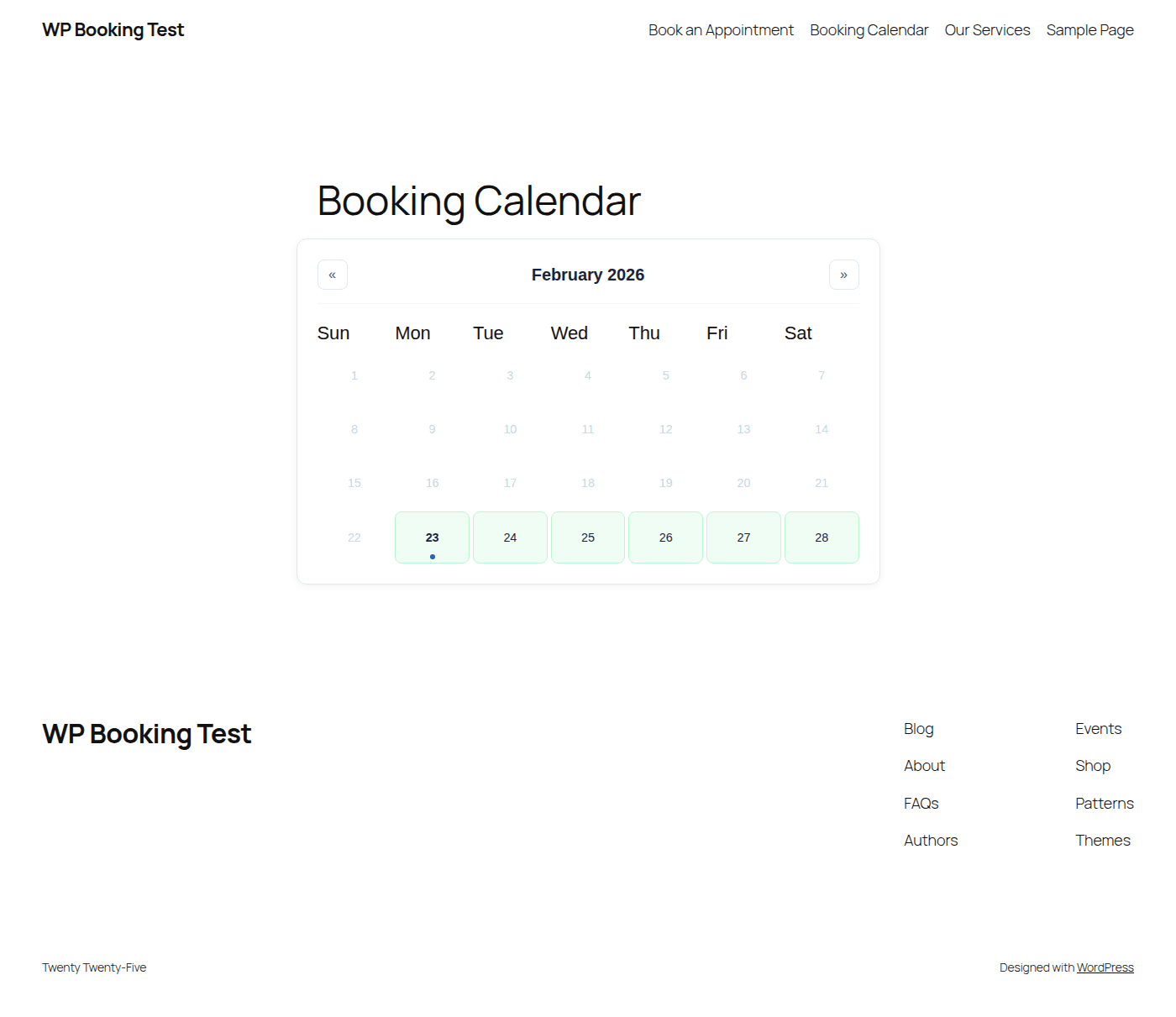
Shortcode Parameters
| Parameter | Values | Description |
|---|---|---|
view | month, week, day | Default view when the page loads (default: month) |
service | service slug | Filter calendar to a specific service |
staff | staff slug | Filter calendar to a specific staff member |
show_legend | true, false | Display a color legend below the calendar (default: true) |
allow_navigation | true, false | Allow visitors to navigate between months/weeks (default: true) |
Examples
Show weekly calendar for a specific service
[booking_calendar view="week" service="massage"]Show a staff member's monthly calendar without navigation
[booking_calendar view="month" staff="jane" allow_navigation="false"]Combine service, staff, and day view
[booking_calendar view="day" service="consultation" staff="john" show_legend="false"]Calendar Export & Sync
Export your booking calendar to external calendar applications so you and your staff can stay on top of appointments from any device.
iCal / ICS
Export a .ics file compatible with Apple Calendar, Thunderbird, and more
Google Calendar
Subscribe via feed URL for automatic two-way sync
Outlook
Import .ics files or subscribe via the calendar feed URL
Exporting Your Calendar
- Navigate to Bookings → Calendar.
- Click the Export button in the toolbar (download icon).
- Choose your export format:
- • Download ICS File — One-time export of all visible bookings.
- • Google Calendar — Opens Google Calendar with the feed URL pre-filled.
- • Outlook — Downloads a .ics file formatted for Outlook, or copies the subscription URL.
- For recurring sync, use the Feed URL option (see below).
Feed URL (Live Sync)
The Feed URL provides a live-updating calendar subscription. External calendar applications poll this URL periodically and automatically pull in new, updated, or cancelled bookings.
- Go to Bookings → Settings → Calendar Export.
- Enable the Calendar Feed toggle.
- Copy the generated feed URL (it includes a unique authentication token).
- Paste the URL into your external calendar app under "Subscribe to calendar" or "Add by URL".
- Set the refresh interval in your external app (e.g., every 15 minutes or hourly).
Feed URL Format
https://yoursite.com/wp-json/wp-booking/v1/calendar-feed?token=abc123&staff=allYou can append &staff=jane or &service=massage to filter the feed.
Warning: The feed URL contains an authentication token. Do not share it publicly. If you suspect the token has been compromised, regenerate it from Settings → Calendar Export → Regenerate Token.
Tips for Using the Calendar Effectively
1. Start Your Day in Day View
Switch to day view each morning for a detailed hourly breakdown of the day's appointments. This gives you and your staff a clear picture of what to expect and where gaps exist for walk-ins.
2. Use Distinct Service Colors
Assign visually distinct colors to each service. At a glance, you should be able to identify which services dominate a particular day or week. This helps with resource planning and prevents overbooking of specialized equipment or rooms.
3. Filter Before Rescheduling
Before drag-and-drop rescheduling, filter the calendar to the relevant staff member. This ensures you can see their availability clearly and avoid placing a booking in a slot that conflicts with another appointment or time-off.
4. Subscribe to the Calendar Feed
Set up the calendar feed URL in Google Calendar or Outlook so you receive booking notifications on your phone. Each staff member can have their own filtered feed URL to see only their appointments.
5. Embed the Public Calendar Strategically
Place the [booking_calendar] shortcode on a dedicated "Availability" page. This reduces phone calls and emails from customers asking about open times. Pair it with a [booking_form] shortcode for a seamless booking experience.
6. Review the Calendar Weekly
Use the month view at the start of each week to identify upcoming busy days, gaps in the schedule, and potential staffing needs. This is the best time to proactively fill cancellations or adjust staff hours.
Calendar Mastered!
You now know how to use the admin calendar, filter and navigate bookings, reschedule with drag-and-drop, embed a public calendar, and export your schedule to external apps. Next, learn how to customize the email notifications your customers receive.
Next: Email TemplatesQuick Reference
| Action | How To |
|---|---|
| Switch views | Click Month / Week / Day buttons in top-right toolbar |
| Go to today | Click the "Today" button in the toolbar |
| Navigate dates | Use left/right arrows or click the date header for a date picker |
| Filter bookings | Use the Staff and Service dropdown menus in the toolbar |
| View booking details | Click on any event block in the calendar |
| Reschedule | Drag and drop the event to a new time slot or date |
| Export calendar | Click the Export button → choose ICS, Google Calendar, or Outlook |
| Embed publicly | Use [booking_calendar view="month"] shortcode |