Coupons & Discounts
Create promotional codes to drive bookings and reward loyal customers
Overview
The Coupons & Discounts module in WP Booking System Pro lets you create promotional codes that customers can apply during checkout to receive a discount. Whether you want to attract new customers, run seasonal promotions, or reward your VIP clients, coupons give you full control over the discount logic, eligibility rules, and validity period.
Percentage Off
Deduct a % from the booking total
Fixed Amount
Subtract a flat dollar value
Targeted Codes
Restrict by service, staff, or customer
Coupon Dashboard
The main Discounts screen gives you a birds-eye view of every coupon in your system. You can see the code, discount type, current status, usage count, and validity dates at a glance.
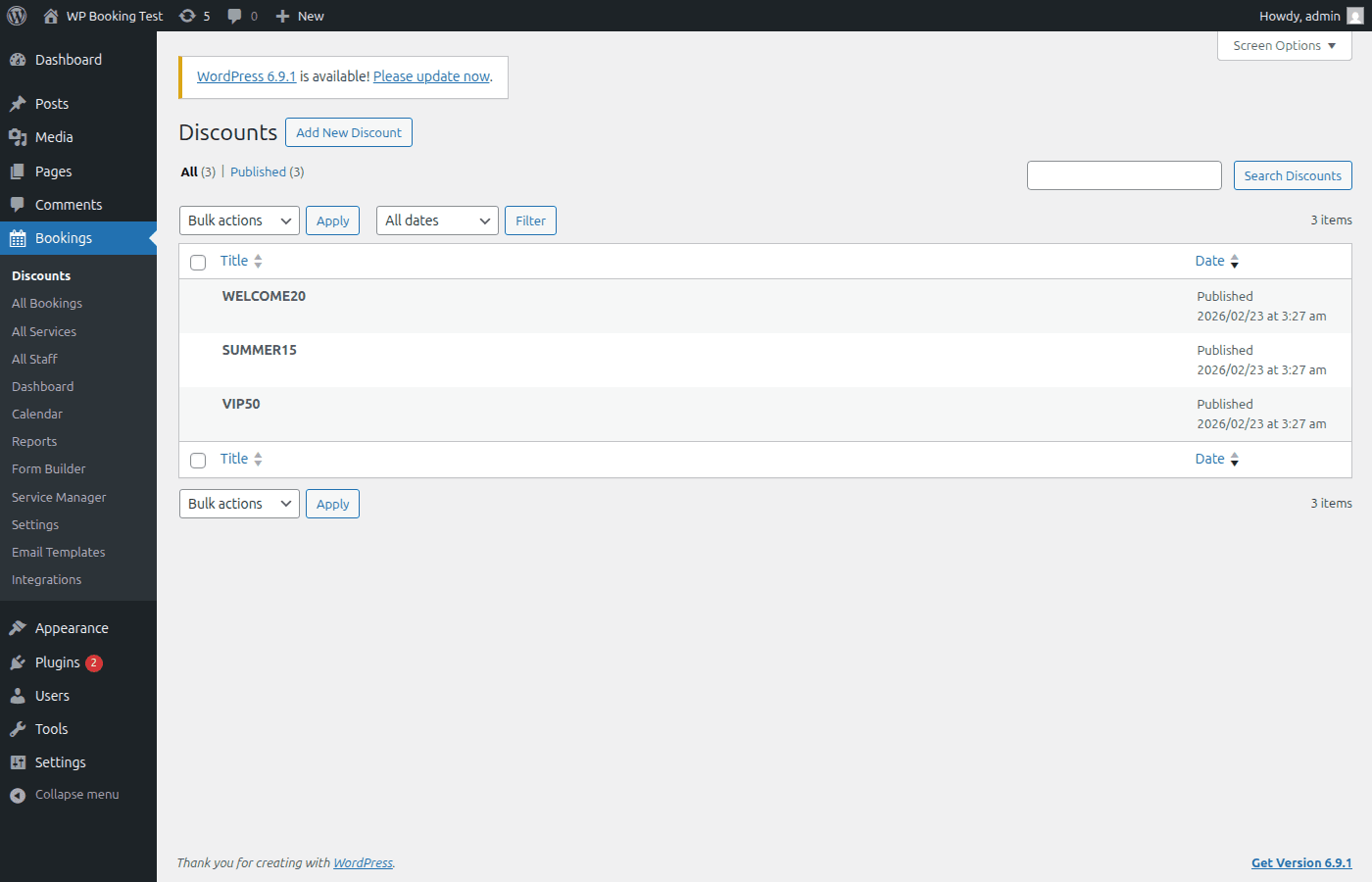
The coupon list displays all active and inactive codes. Click any row to edit, or use the bulk actions menu to activate, deactivate, or delete multiple coupons at once.
Coupon Settings
Coupon Code
The unique code customers will enter at checkout. Codes are automatically converted to uppercase to avoid case-sensitivity issues. You can either type a custom code (e.g., WELCOME20) or click the "Generate Code" button to produce a random alphanumeric string.
Tip: Keep coupon codes short and memorable. Combine a keyword with a number for easy recall — for example, SUMMER15 or VIP50.
Discount Type
Choose between two discount models depending on your promotion strategy:
Percentage Discount
Deducts a percentage of the booking total. Scales automatically with the booking price.
Best for: General promotions, welcome offers, loyalty rewards where you want the discount to be proportional to the booking value.
Example: 20% off a $150 booking = $30 discount
Fixed Amount Discount
Subtracts a flat dollar value from the booking total, regardless of the booking price.
Best for: Simple "$15 off" promotions, gift card-style codes, or when you want predictable discount costs.
Example: $15 off a $150 booking = $135 final price
Discount Amount
Enter the numeric value for the discount. For percentage discounts, enter a number between 1 and 100. For fixed-amount discounts, enter the dollar value to subtract. The currency matches your WP Booking System Pro payment currency setting.
Minimum Booking Amount
Set a minimum booking subtotal that must be reached before the coupon can be applied. Leave blank or set to 0 for no minimum requirement.
Tip: A minimum booking amount prevents customers from using a coupon on very low-value bookings. For example, requiring a $50 minimum ensures a "20% off" code yields at least $10 in revenue per booking.
Maximum Discount Cap
For percentage-based coupons only, this field lets you set a ceiling on the discount value. Even if the percentage calculation would yield a larger number, the discount will never exceed this cap.
Example: A 50% coupon with a $200 max cap applied to a $600 booking — the calculated discount would be $300, but the customer only receives $200 off.
Warning: The maximum discount cap only applies to percentage-type coupons. For fixed-amount coupons, the discount amount itself is the cap. This field will be hidden when "Fixed Amount" is selected as the discount type.
Start Date & End Date
Define the validity window for the coupon. The coupon will only be accepted at checkout if the current date falls within this range (inclusive). If no dates are set, the coupon is valid indefinitely as long as it remains active.
Start Date
The first day the coupon becomes active. Customers cannot apply the code before this date.
End Date
The last day the coupon is valid. After this date, the code will be automatically rejected at checkout.
Active / Inactive Toggle
Use this toggle to enable or disable a coupon without deleting it. When set to Inactive, the coupon code will be rejected at checkout even if it is within the valid date range and hasn't reached its usage limit. This is useful for pausing a promotion temporarily.
Usage Restrictions
Restrictions let you control exactly who can use a coupon, for which services, and how many times. All restriction fields are optional — leave them blank to allow unrestricted use.
Allowed Services
A multi-select dropdown that limits the coupon to specific services. When one or more services are selected, the coupon will only work if the customer is booking one of those services. If left empty, the coupon applies to all services.
Tip: Use service restrictions for targeted campaigns. For example, create a "SPADAY" coupon that only works for spa-related services to drive traffic to a specific category.
Allowed Staff
A multi-select dropdown that restricts the coupon to bookings made with specific staff members. This is useful for promotions tied to a particular provider — for instance, a new stylist offering an introductory discount. If left empty, the coupon applies regardless of which staff member is selected.
Specific Customers (Email List)
Enter one or more email addresses to restrict the coupon to those customers exclusively. The email the customer provides in the booking form will be checked against this list. If the email does not match, the coupon will be rejected.
Warning: Email-based restrictions rely on the email entered in the booking form. There is no account-based verification, so a customer could theoretically use a different email. For high-value VIP codes, consider combining email restrictions with a per-customer usage limit of 1.
Total Usage Limit
The maximum number of times this coupon can be redeemed across all customers combined. Once the limit is reached, the coupon will be automatically rejected. Leave blank for unlimited total usage. This is useful for flash sales where you want to cap how many discounted bookings are available (e.g., "First 50 bookings get 20% off").
Per-Customer Usage Limit
The maximum number of times a single customer can use this coupon. The system tracks usage by email address. Set to 1 for one-time-use codes, or leave blank for unlimited per-customer redemptions.
Tip: For "welcome" or "first booking" style promotions, always set the per-customer limit to 1 so each new customer can only redeem the offer once.
Usage Statistics
Every coupon displays a read-only Usage Count that shows how many times the code has been successfully redeemed. This counter updates automatically each time a booking is completed with the coupon applied.
What you can track:
- Total redemptions — the overall number of times the coupon has been used
- Remaining uses — if a total usage limit is set, the remaining count is calculated automatically
- Status indicator — coupons that have reached their limit display an "Exhausted" badge on the list view
Creating a Coupon Form
Below is the coupon creation form. All fields described above are available in a single, streamlined interface.
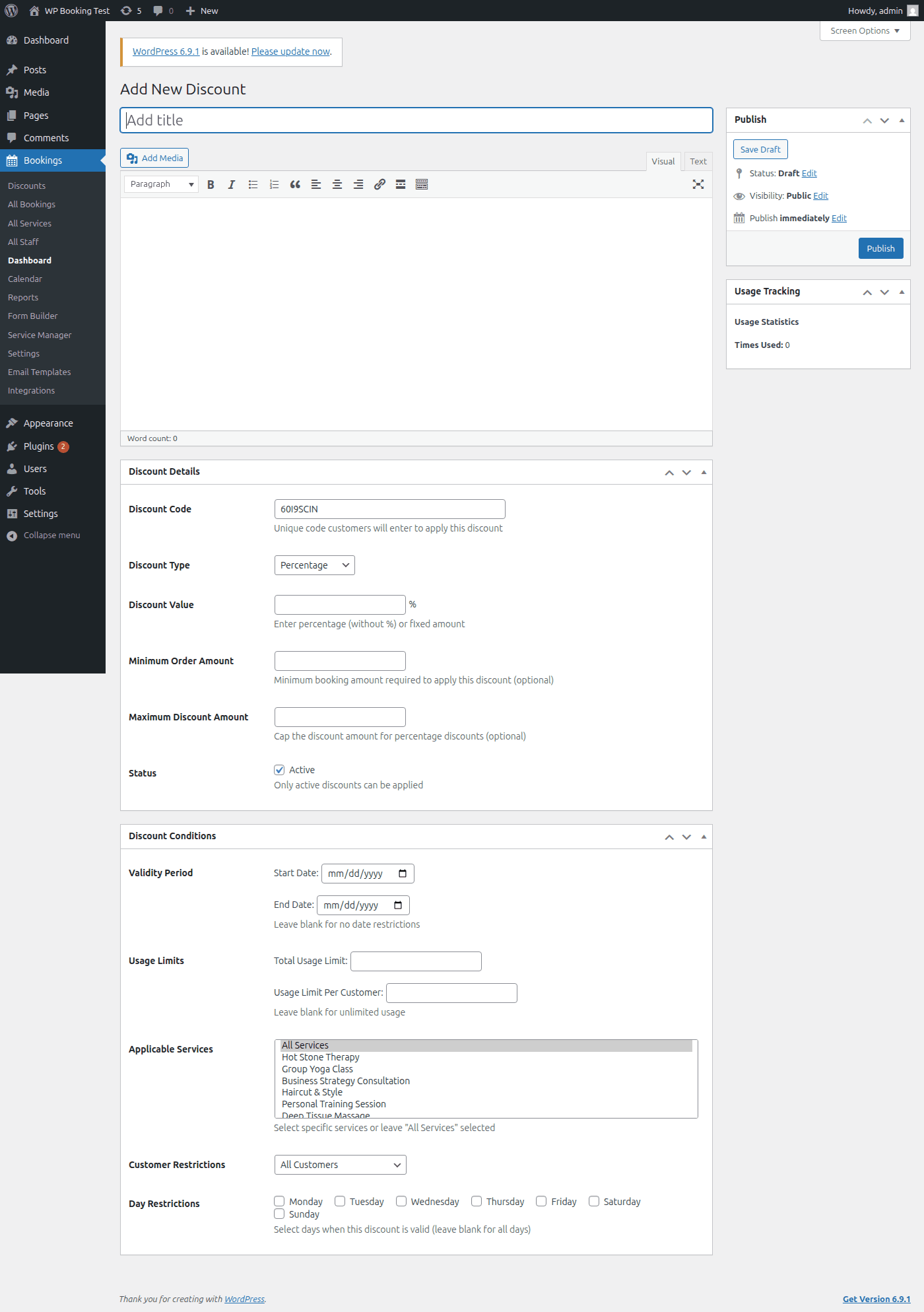
Creating a Coupon — Step by Step
Navigate to the Discounts Page
In your WordPress admin sidebar, go to Bookings → Discounts. This opens the coupon management dashboard.
Click "Add New Discount"
Click the Add New Discount button at the top of the page. The coupon creation form will open.
Enter the Coupon Code
Type a memorable code or click "Generate Code" for a random one. The code is automatically converted to uppercase.
Select the Discount Type
Choose "Percentage" or "Fixed Amount" from the dropdown. This determines how the discount value is calculated at checkout.
Set the Discount Amount
Enter the numeric value. For percentage, enter 1–100. For fixed amount, enter the dollar value. Optionally set the minimum booking amount and maximum discount cap.
Configure Restrictions
Optionally select allowed services, allowed staff, enter specific customer emails, set total usage limit, and per-customer usage limit. Skip any fields you don't need.
Set the Date Range
Pick a start date and end date to define when the coupon is valid. Leave both blank for an evergreen coupon with no expiry.
Publish the Coupon
Ensure the Active toggle is turned on, then click Publish. The coupon is now live and customers can start using it immediately (or from the start date, if set).
Example Coupon Configurations
Below are three real-world coupon setups that demonstrate different use cases. Use these as templates for your own promotions.
WELCOME20New Customer Welcome Offer
Use case: Share this code on your website, social media, or welcome email to attract first-time customers. The $50 minimum prevents abuse on low-value bookings, while the $100 cap protects you on high-value ones.
SUMMER15Seasonal Spa Promotion
Use case: A seasonal campaign that runs only during summer months and applies exclusively to spa services. The fixed $15 amount makes cost planning straightforward — you know exactly how much each redemption costs.
VIP50VIP Customer Exclusive
Use case: A high-value code sent privately to your most loyal customers via direct email. The email restriction ensures only approved VIP addresses can redeem it. The $200 discount cap keeps your exposure predictable even at 50% off.
Best Practices
Do
- Always set a maximum discount cap on percentage coupons to limit exposure
- Use per-customer limits on welcome codes to prevent abuse
- Set date ranges for seasonal promotions so they expire automatically
- Monitor usage statistics regularly to measure campaign performance
- Test your coupon before sharing it publicly to verify all restrictions work
Avoid
- Do not create percentage coupons without a max cap unless you intend to offer unlimited discounts
- Avoid setting a fixed discount higher than your cheapest service price
- Do not share VIP codes on public channels — use email-restricted coupons instead
- Avoid leaving expired coupons active — deactivate them to keep your list clean
- Do not rely solely on email restrictions for high-value codes — combine with usage limits
Frequently Asked Questions
Can a customer stack multiple coupons on one booking?
No. Only one coupon code can be applied per booking. If a customer tries to add a second code, the first one will be replaced.
What happens if a booking is cancelled after using a coupon?
The coupon usage count is decremented when a booking is cancelled, freeing up that redemption slot for future use.
Are coupon codes case-sensitive?
No. Codes are stored in uppercase and any input from the customer is automatically converted to uppercase before validation. "welcome20" and "WELCOME20" are treated identically.
Can I edit a coupon after it has been used?
Yes. You can modify any coupon settings at any time. Changes apply to future redemptions only — bookings already made with the coupon are not affected.
Ready to Create Your First Coupon?
Head to Bookings → Discounts → Add New Discount in your WordPress admin to get started. Use the example configurations above as starting points and adjust to fit your business needs.
Next: Track coupon performance in Reports